How to Use AI to Answer Customer Emails (Without Sounding Like a Robot)
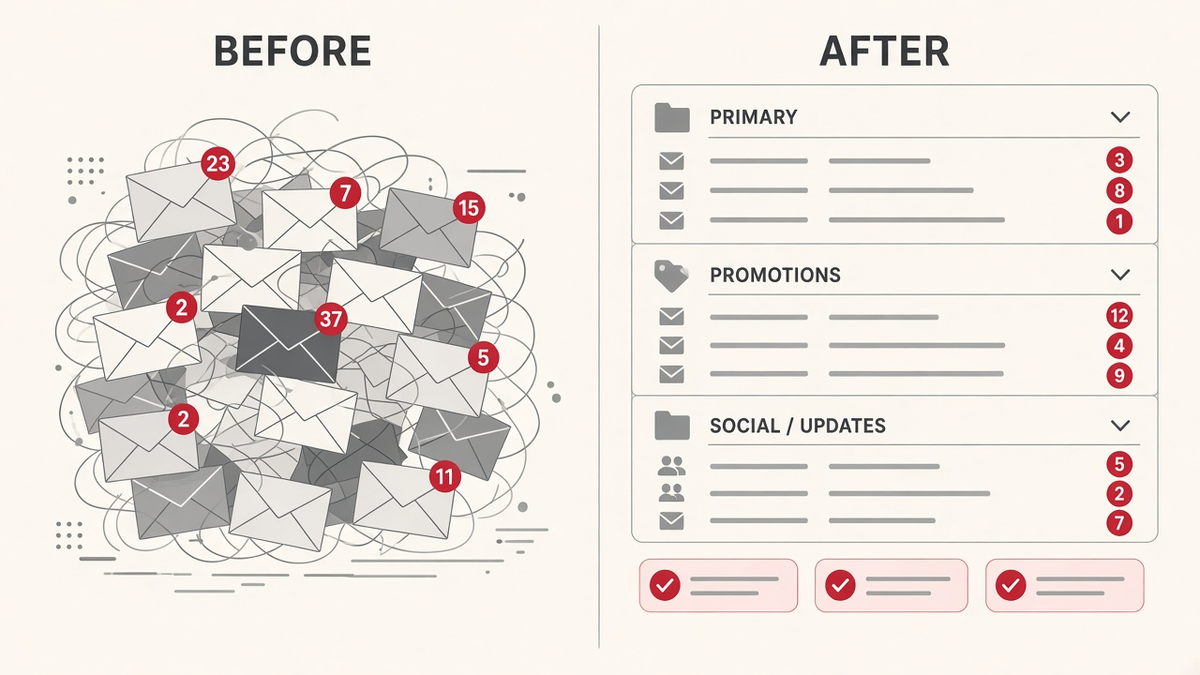
If you run a small business, your inbox probably runs part of your day. Quote requests, "are you open Saturday?", order questions, complaints, follow-ups you meant to send last week. Every one of them matters, because every one of them is a customer.
The problem isn't that you can't write a good reply. It's that you have to write forty of them, in between actually running the business.
This is one of the easiest places to start using AI. Not because AI is magic, but because most customer emails follow patterns you already know. You've answered "how much does it cost?" a hundred times. AI can do the first draft. You keep the final say.
Here's how to set it up without building anything technical, and without your customers feeling like they're talking to a machine.
Why most AI replies sound like a robot
You've seen them. "Thank you for reaching out! We appreciate your inquiry and will be delighted to assist you."
Nobody talks like that. Customers can tell, and it makes your business feel bigger and colder than it is.
AI writes that way when it doesn't know anything about you. Give it nothing and it falls back on generic, overly polite filler. Give it your real answers, your tone and a few examples of how you actually write, and the drafts start sounding like you on a good day.
So the fix isn't a better tool. It's better instructions.
Step 1: Sort before you answer
Before AI writes a single reply, have it help you see what's actually in your inbox. Most customer emails fall into a handful of buckets:
- Questions with a standard answer (hours, pricing ranges, service area, how to book)
- New leads (someone wants a quote or a call)
- Existing customers (order updates, scheduling, changes)
- Problems (complaints, refunds, something went wrong)
- Everything else (vendors, spam, newsletters)
Ask your AI assistant to read your recent emails and group them this way. You'll quickly see that a big share of your inbox is the same few questions over and over. Those are your first wins.
Problems and upset customers are different. Those should always get your personal attention. AI can help you draft a calm reply, but you should read every word before it goes out.
Step 2: Write your answer sheet once
This is the step that makes everything else work, and it takes about an hour.
Open a simple document and write out how you answer your most common questions. Plain language, the way you'd say it to a customer standing in front of you. For example:
- What you charge, or how you price, if you share that
- Your hours and how fast you usually reply
- Your service area
- How someone books or gets a quote
- Your policy on changes, cancellations or refunds
Then add a short note about your tone. Something like: "We're a family business. Friendly, direct, no corporate language. Short replies. Sign off with my first name."
Finally, paste in three or four real replies you've sent that you were happy with. Examples teach AI your voice faster than any description.
That document becomes the instructions you give AI every time. Update it when something changes, and your replies stay accurate.
Step 3: Let AI draft, then you review and send
Now the daily routine is simple:
- Sort. AI groups new emails so you know what needs you and what doesn't.
- Draft. For routine questions, AI writes a reply using your answer sheet.
- Review and send. You read it, fix anything that's off, and hit send.
That last step is the one most people want to skip. Don't. Reviewing a draft takes seconds. Fixing a wrong price or a promise you can't keep takes a lot longer. Keeping a human on the send button is also what keeps your replies sounding like a person.
Over time you'll notice which drafts you never have to change. Those are the questions where AI has fully learned your answer.
How to keep it sounding human
A few habits make a big difference:
- Keep replies short. Most customers want an answer, not a letter. Tell AI to keep it to a few sentences.
- Use the customer's name and respond to what they actually said, not a generic version of the question.
- Ban the filler. Tell AI to skip phrases like "we appreciate your inquiry" or "please don't hesitate to reach out."
- End with one clear next step. "Reply with a time that works" beats three options and a paragraph of thanks.
- Read it out loud. If you wouldn't say it to a customer at your counter, change it.
What not to hand off to AI
AI is great at the repetitive part of your inbox. It shouldn't run the whole thing. Keep these for yourself:
- Complaints and refund decisions
- Anything involving money you haven't already set a policy on
- Sensitive personal or health information
- Promises about dates, availability or results you haven't confirmed
- Your best customers, who deserve to hear from you directly
And be careful with private information. Before you connect any AI tool to your email, check what it does with your data and who can see it.
Do you need special software?
Usually not to get started. Many owners begin with an AI assistant they already have, paste in a customer email along with their answer sheet, and ask for a draft. That alone can take a lot of the work out of a busy inbox.
When you're ready for more, there are tools that connect directly to your email to sort messages and prepare drafts for you to approve. The setup matters less than the habits above. A great tool with no answer sheet still writes robot replies.
Frequently asked questions
Will customers know I used AI? Not if you do the review step. The draft is a starting point. What goes out is your reply, in your words, checked by you.
Is it safe to let AI read my email? It depends on the tool. Check its privacy settings and data policy before you connect anything, and keep sensitive conversations out of it.
How long does setup take? The answer sheet is the main work, and most owners can write a first version in about an hour. You'll keep improving it as new questions come in.
What if the AI gets something wrong? That's why you review before sending. When you catch a mistake, add the correct answer to your answer sheet so it doesn't happen again.
Start with your five most common questions
You don't need to automate your whole inbox this week. Pick the five questions you answer most, write your answers down, and let AI draft replies to just those. See how it feels.
If you'd like help setting this up for your business, that's exactly what I do with Mugen Solutions. I run free hands-on AI workshops for small business owners, and we build things like this around your real tasks, not generic examples. Reach out here and let's talk about what's eating up your day.